
 Follow
In this post I’ll cover how to get your blog upgraded to version 2.7 using the Instant Upgrade plugin. If your site was setup by Ninja Blog Setup, then Instant Upgrade was installed when we set up your site.
The Risks When Upgrading
There are always risks when upgrading your blog, especially a major upgrade. The worst case scenario is that you would need to completely roll back to the older version and restore your database from a backup.
Minor problems that could be faced are plugins that are not compatible, errors in your theme, or general brokenness in the admin area.
At the bottom of this post, I’ll give you some pointers for where to get help for these problems.
Step 1. Getting Started
One plugin that I know is not compatible with WordPress 2.7 and needs to be disabled before you upgrade is called “Plug Installer”
You’ll need to go to the Plugins page on the dashboard and de-activate it. We usually do de-activate it at the end of our install process, but go and make sure just to be safe, you can also delete it, once it has been de-activated, as you won’t be using it again.
Once you have de-activated the “Plug Installer” plugin, then continue from here.
Step 2. Cover Your Butt – Backup!
Using the backup plugin installed under Manage / Plugins, go and take a backup (make sure the checkboxes for all the tables are selected) and download the backup to your computer. Once it has finished go to the location you saved the file and verify that it exists.
Once you have created a backup and verified that it is safely on your computer, then continue from here.
Step 3. Perform the Upgrade
This video covers how to actually use the Instant Upgrade plugin to upgrade to version 2.7 of WordPress.
Click the Image or here to watch the video.
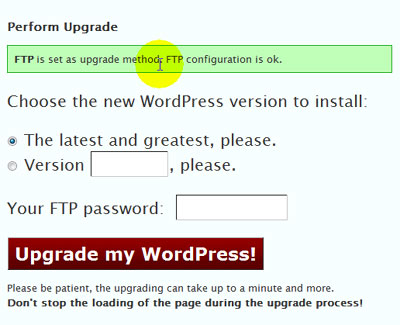
If you get any errors, skip this part and read on down below for where to get some help and debug the problems.
Once the upgrade has completed and everything looks cool, check out my video tour of the new WordPress 2.7 admin area and new features to find out what’s not.
(Step 4. Disaster Strikes & Everything Went Wrong)
Deep breath…
Every blog that Ninja Blog Setup has installed has been sending a backup to your primary email once a week since it was setup, so even if your were extremely crazy and didn’t heed my warning to take one before you began, you should still have a fairly recent one that you can use to restore your site.
Getting Help
Theme is broken or not displaying correctly – Contact the author of of the theme, usually there is a link to them in the admin area under “Themes”. It will be the top theme, since it is the currently active one.
Plugins causing error or not functioning correctly – this is common during major version upgrades. The only thing you can do really is to disable the plugin(s) and wait for the plugin creator to come out with a new version to fix the issues. You can also search for alternatives, since most popular plugins have at least 2 or 3 competitors.
Errors Everywhere or Error Script on The Page – here you have 3 options:
- Free support on the WordPress support forums. Step one is to search for your error, chances are very high that someone else already had the same problem. If you don’t find it then post a CLEAR discription of your error, and a link to your site, and generally some friendly person will help you out.
- Hire a WordPress Pro. Visit the WordPress pro’s page and follow the steps to send a email requesting help and asking for bids to troubleshoot and fix the problem. You’ll usually receive a lot of emails from great people willing to help for a very reasonable fee.
- Hire Joel. Joel offers a blog help desk and can help you fix anything for a fee.
Hope this helps and that your upgrade goes smoothly. I think you’ll find WordPress 2.7 is well worth the time as the many new features will save you time and make blogging more fun!
There are varied remedies for sundry diseases. Several remedies are antifungal medicines. In specific instances pharmacies offer to their customers Viagra. If you’re concerned about erectile problem, you have to study about “cialis daily” and “daily cialis“. Probably you already know something about the problem. Maybe “cialis for daily use cost” is an extremely complicated problem. Matters, like “undefined”, are linked many types of medic problems. A scientific research found that about 14 percent of patients taking Bupropion had sexual dysfunction. Finally ordering remedies from the Web can save money, but keep these tips in mind.




December 15, 2008
Just as easy would be to install the Automatic WordPress Upgrade plugin and use it to do the upgrade. As part of the process(if you use the step by step process)you will have backups, all plugins will be deactivated prior to any upgrade and perhaps best of all nothing had to be uploaded.
December 17, 2008
Many thanks for the video clip on upgrading to 2.7. Your content is useful as always and I have successfully moved version 2.7. Thanks again.
December 21, 2008
I did my update last night. I used the automatic update and everything went smoothly. I like the new admin console, I think it looks pretty neat.
December 29, 2008
Thank you for your excellent post, email of 13 Dec 2008. After many attempts to upgrade to WP2.7 it at last manged to do it (instant upgrade) 10 min ago! This is Happy Time straight from desperation. Every attempt gave me the same message: FTP setup was ok – upgrade now. And when I did, it reported that there was a fault/error in FTP setup. I won’t tell you how many times I went through this routine – but like magic, it finally “clicked”, without effectively having changed anything. I mention this just in case somebody else may have the same or similar problem.
Now, I have long outstanding message to you, and that is a sincere THANK YOU for all your help setting me up. I could not have done without you. Everything is working fine and set to make 2009 a bumper year! I hope you had a nice Christmas and wish you all the best, success and glory for 2009 and always.
Jurgen Waibel (easyextraincomenow.com)
February 9, 2009
I upgraded to WP 2.7 and it killed my blog. Fortunately for me, it was still in its infancy so I was able to manually recover. I suspect it was due to changes I had made.
That being said, WP 2.7 is fantastic. I love the changes they made.
May 6, 2009
Upgrading to 2.7 is really worth it. The best part is the spam protection which is much better and plugins like akismet and challenge work great on 2.7
August 6, 2009
what about upgrading to 2.8?
August 6, 2009
Mancing, upgrading to WordPress 2.8 is routine since it can be handled with the built in upgrade function that was included in WordPress with version 2.7.